How should you secure your home wireless network for teleworking?
With more people working from home than ever before, securing your home wireless network is essential. A weak network can expose sensitive information to cybercriminals and disrupt your work.
Many people do not take the necessary steps to protect their home Wi-Fi networks. This can lead to unauthorized access, data breaches, and other security issues. Without proper protection, your personal and professional information is at risk.
In this blog, we’ll explore practical steps you can take to secure your home wireless network for teleworking. By implementing these measures, you can create a safer online environment for yourself and your family.
Why secure your home wireless network?
When you work from home, you connect to your company’s network and access sensitive data. If your home wireless network is not secure, cybercriminals can easily intercept this information.
Here are some reasons why securing your home Wi-Fi is crucial:
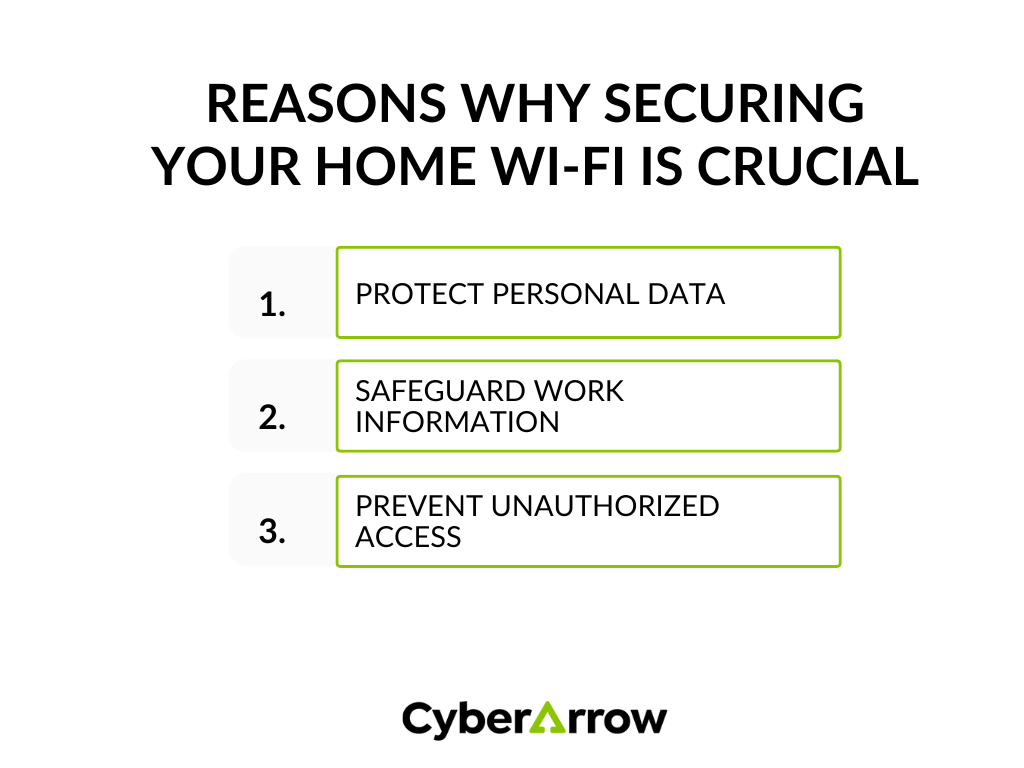
- Protect personal data: Your home network likely contains sensitive personal information, such as bank details, passwords, and private communications. A breach can lead to identity theft and financial loss.
- Safeguard work information: Many employees handle confidential company data while teleworking. If your network is compromised, it can lead to data leaks, loss of client trust, and potential legal consequences for your organization.
- Prevent unauthorized access: An unsecured network can allow unauthorized users to connect to your Wi-Fi. This not only slows down your internet speed but also exposes your devices to malware and hacking attempts.
Steps to secure your home wireless network
Now that we understand the importance of securing your home wireless network, let’s explore some effective steps to enhance your network’s security.
1. Change default router settings
Most routers come with default usernames and passwords. These are easy for hackers to find. Change these to something unique and strong.
- Username: Avoid using common names like “admin.” Choose something less predictable.
- Password: Use a combination of letters, numbers, and symbols. Aim for at least 12 characters.
2. Enable WPA3 encryption
Encryption protects the data traveling over your network. Ensure your router uses the latest security protocol, WPA3. If your router does not support WPA3, use WPA2 as the next best option.
- How to enable it: Log in to your router’s settings through a web browser. Look for the security settings and select WPA3 or WPA2.
3. Update router firmware regularly
Router manufacturers frequently release firmware updates to fix security vulnerabilities. Keep your router’s firmware updated to ensure you have the latest security patches.
- How to update: Log in to your router settings and check for a firmware update option. Follow the instructions provided by the manufacturer.
4. Set up a guest network
If you have visitors who need internet access, set up a guest network. This keeps your main network more secure by isolating guests from your devices.
- How to set it up: Access your router settings and look for a guest network option. Enable it and set a strong password.
5. Disable WPS
Wi-Fi Protected Setup (WPS) is a feature that allows devices to connect easily to your network. However, it can also be a security risk. Disable WPS in your router settings to improve security.
6. Use strong passwords for all devices
Every device connected to your home network should have a strong password. This includes computers, smartphones, smart TVs, and IoT devices.
- Password tips: Use unique passwords for each device and avoid reusing passwords across multiple accounts.
7. Regularly monitor connected devices
Check which devices are connected to your network regularly. This helps you identify any unauthorized access quickly.
- How to monitor: Log in to your router settings and view the list of connected devices. If you see any unfamiliar devices, take action to secure your network.
8. Enable network firewalls
Most routers come with built-in firewalls that help block unauthorized access. Ensure that the firewall is enabled in your router settings.
9. Turn off your network when not in use
If you’re not using your Wi-Fi, consider turning it off. This reduces the risk of unauthorized access.
- How to turn it off: You can manually turn off the router or set a schedule for it to turn off during certain hours.
Enhance your security posture with CyberArrow GRC
For organizations looking to enhance their overall security posture, consider using CyberArrow GRC. CyberArrow GRC offers a comprehensive approach to governance, risk management, and compliance.
Here’s how it can help:
- Automated compliance monitoring: Stay on top of regulatory requirements with automated checks and updates.
- Centralized risk management: Manage all your risks in one place and easily track mitigation efforts.
- Real-time reporting: Get instant insights into your security status and compliance efforts.
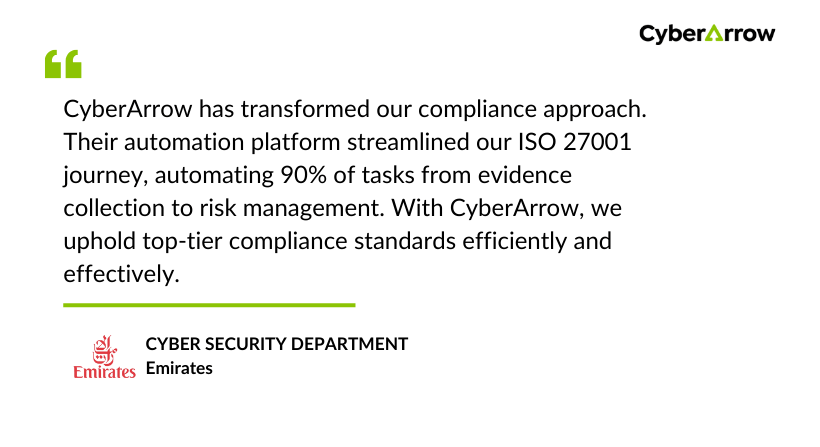
Many organizations like Emirates have successfully implemented CyberArrow GRC to streamline their compliance processes and improve security measures, ensuring a safer working environment for remote employees.
See what Emirates has to say about CyberArrow GRC: